Usage
ViewStretch has one job: stretch what you see in the 3D Viewport along the current view axes, non-destructively, and let you reset it instantly. There are two ways to trigger it — the viewport button and the keyboard shortcuts — and it behaves differently in Object Mode and Edit Mode.
Keyboard shortcuts (Object Mode)
Ctrl + Alt + LMBdrag — stretch. Release to keep it; click without dragging to reset.Ctrl + Alt + RMB— reset.Hold
Shiftwhile dragging — precision mode (finer control of the scale factor).RMBorEscduring a drag — cancel the current gesture.
While you drag, the viewport header shows the live scale factors so you always know exactly how much you have stretched.
Object Mode
In Object Mode, ViewStretch stretches everything visible in the viewport.
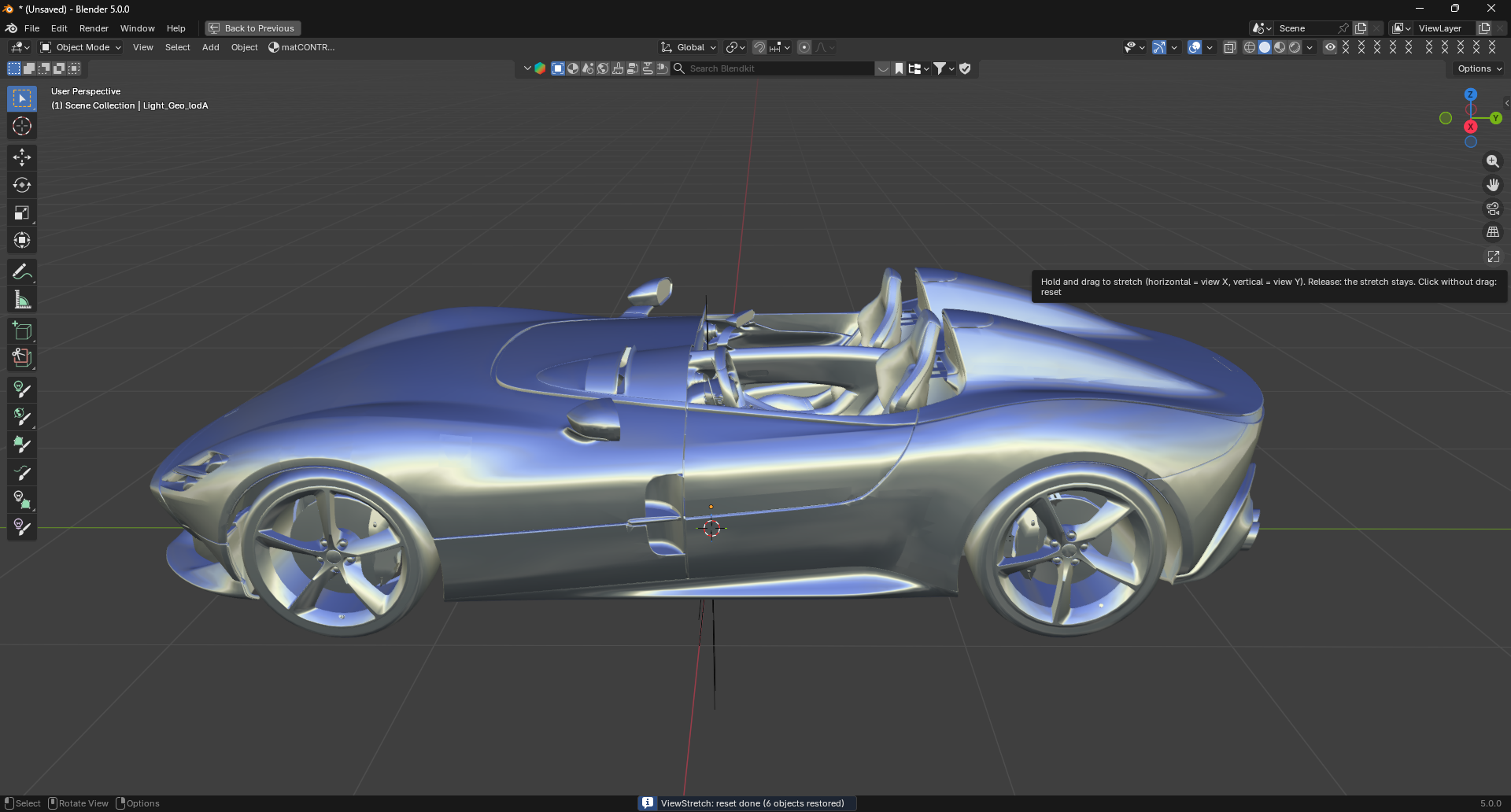
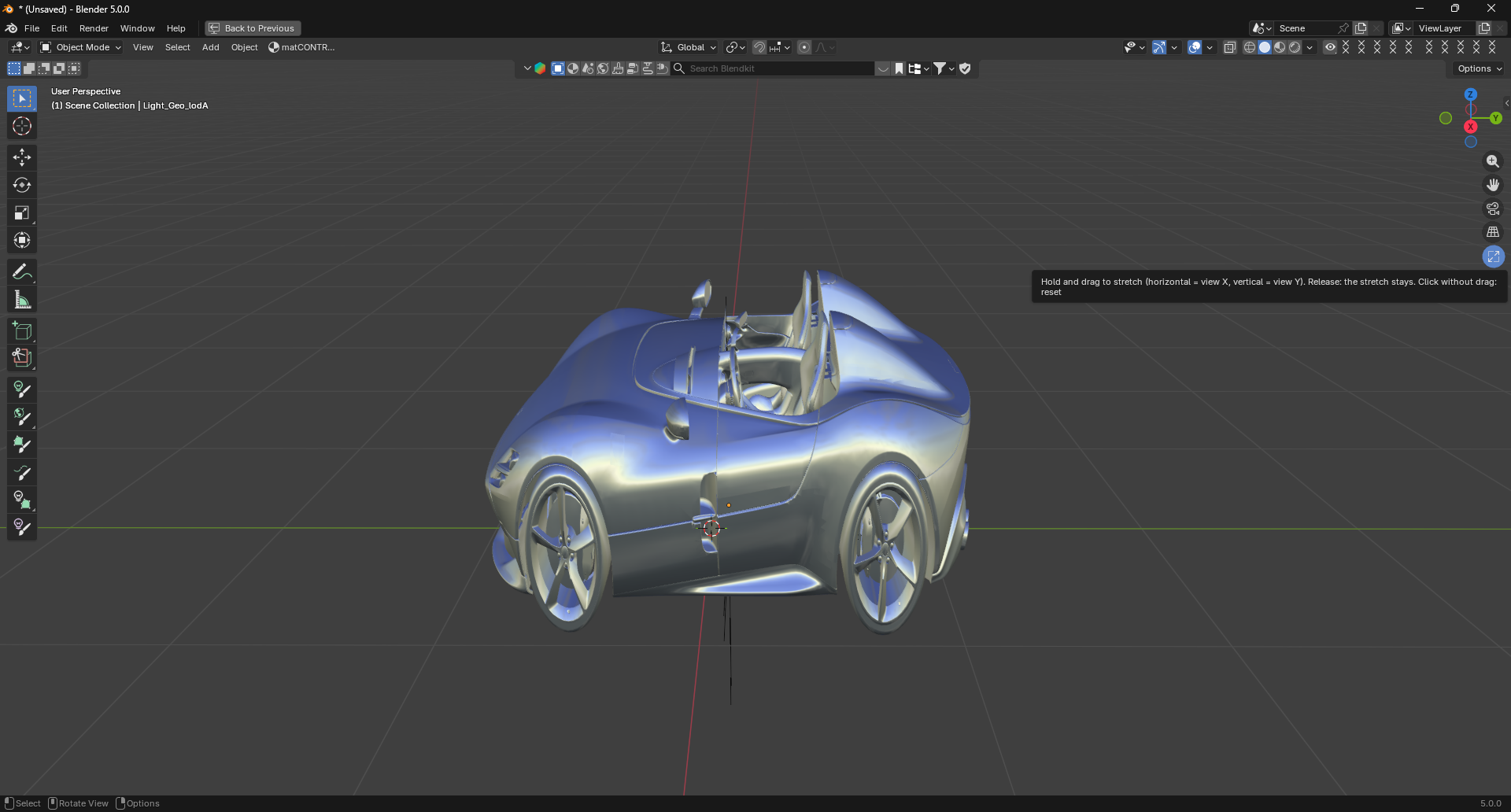
Hold and drag to stretch. Here the model has been scaled down along the view’s X axis:
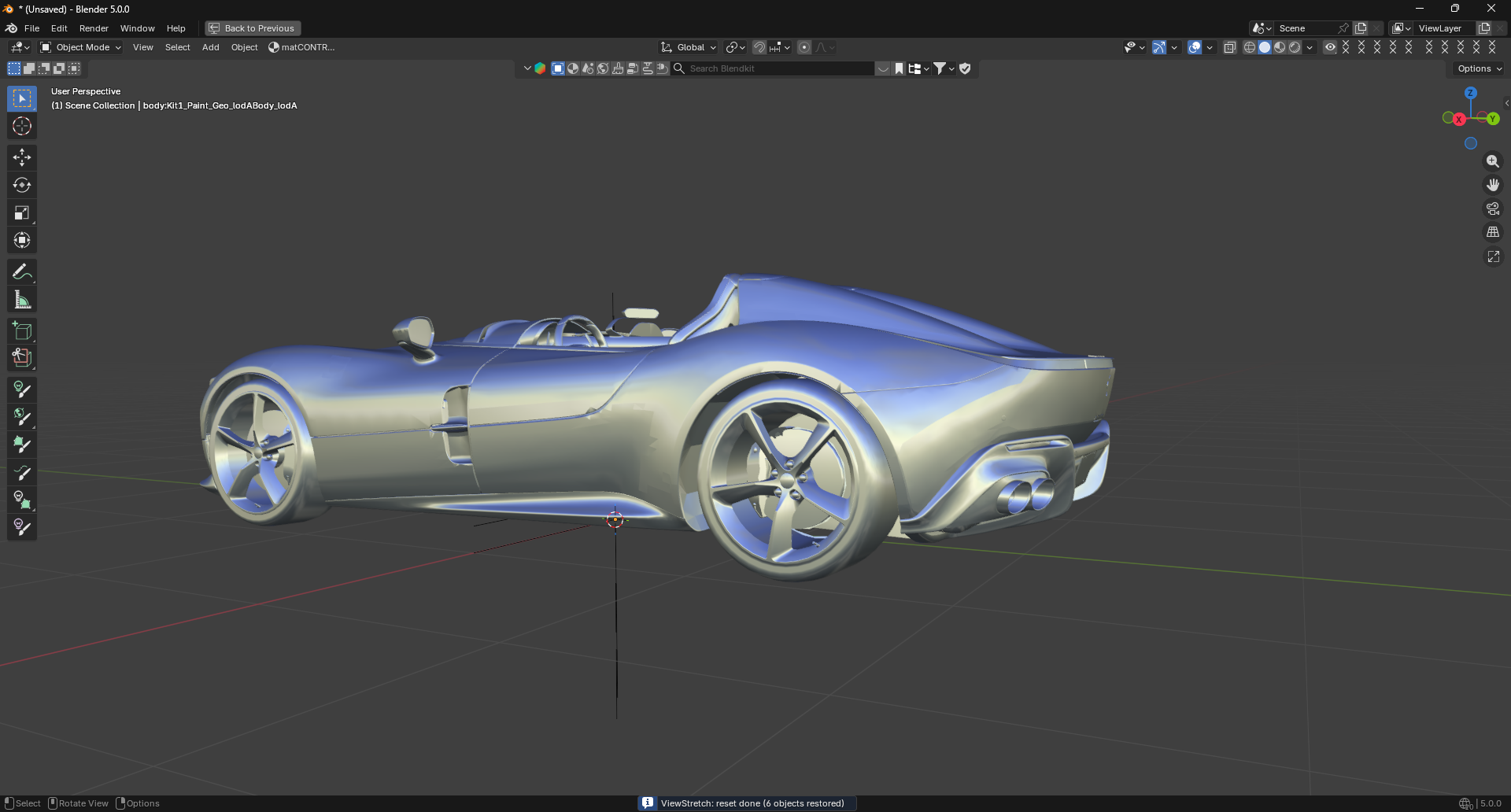
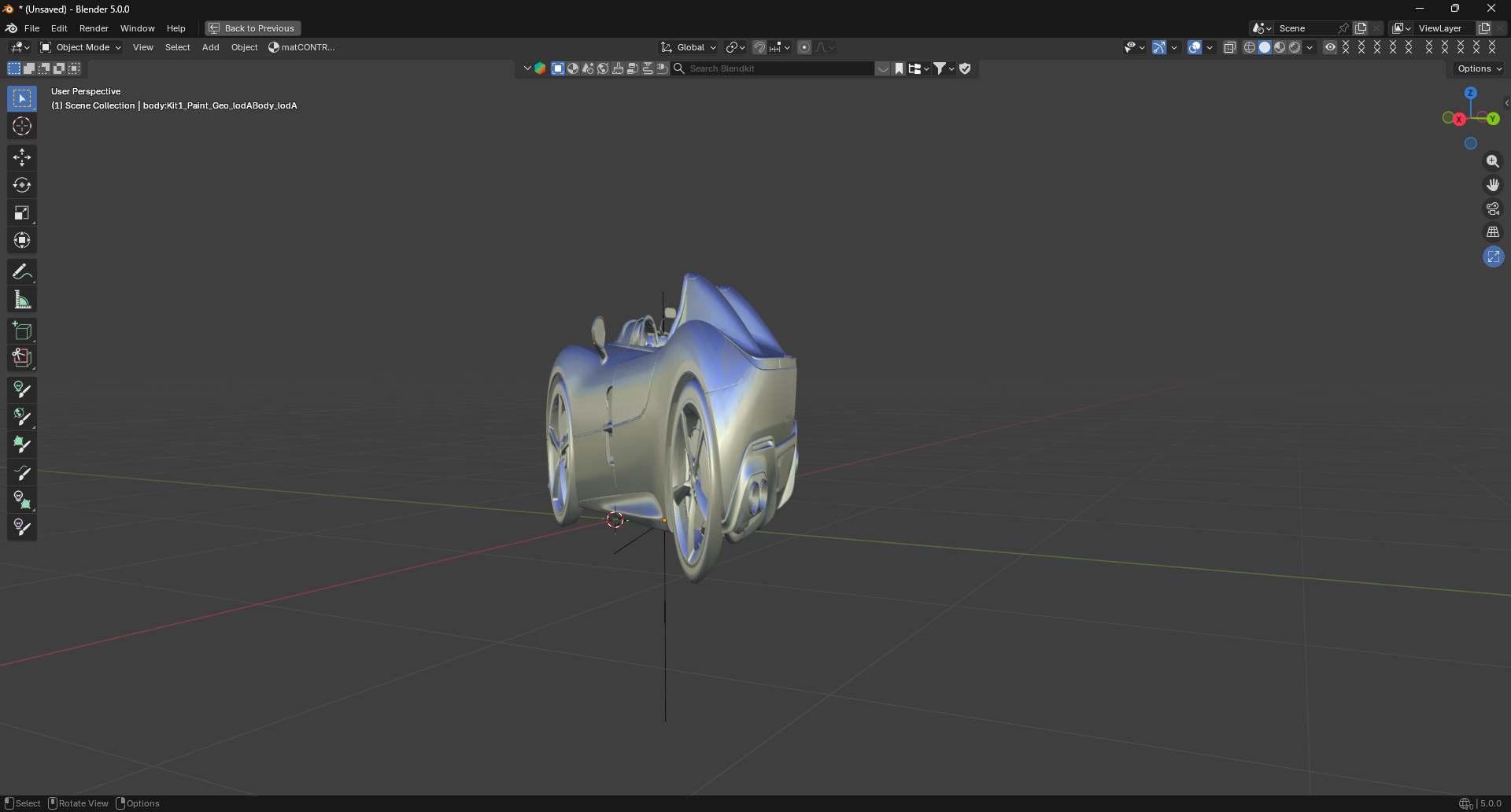
Because the stretch is aligned to the view, orbiting to a different angle and stretching again rescales along that new view. The effect is always relative to what you currently see:
Under the hood, ViewStretch walks each visible object up to the root of its hierarchy and parents that root to the hidden Empty, so rigs and nested chains follow as one piece without breaking any parenting. Linked (library) objects are skipped. By default only geometry-like objects are affected; enable Include All Object Types in the preferences to also stretch cameras, lights, and similar objects.
Edit Mode
In Edit Mode (Mesh, Curve, Curves, or Surface), ViewStretch stretches only the object(s) you are editing — and only through the viewport button. The keyboard shortcuts intentionally pass through in Edit Mode so routine editing gestures (like edge-ring selection with Ctrl+Alt) are never stolen.
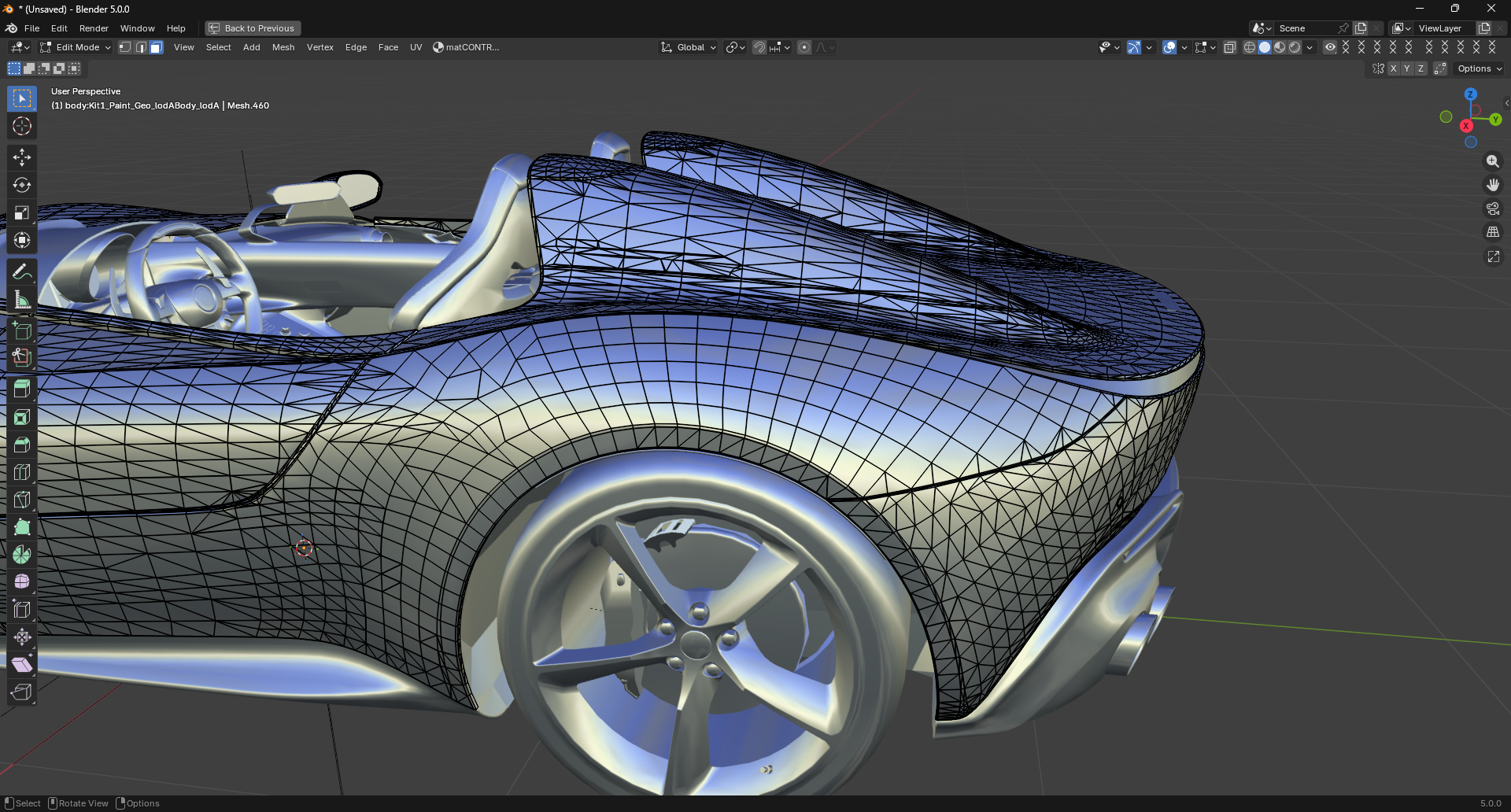
Using the viewport button, only the edited panel is stretched while the rest of the model stays untouched:
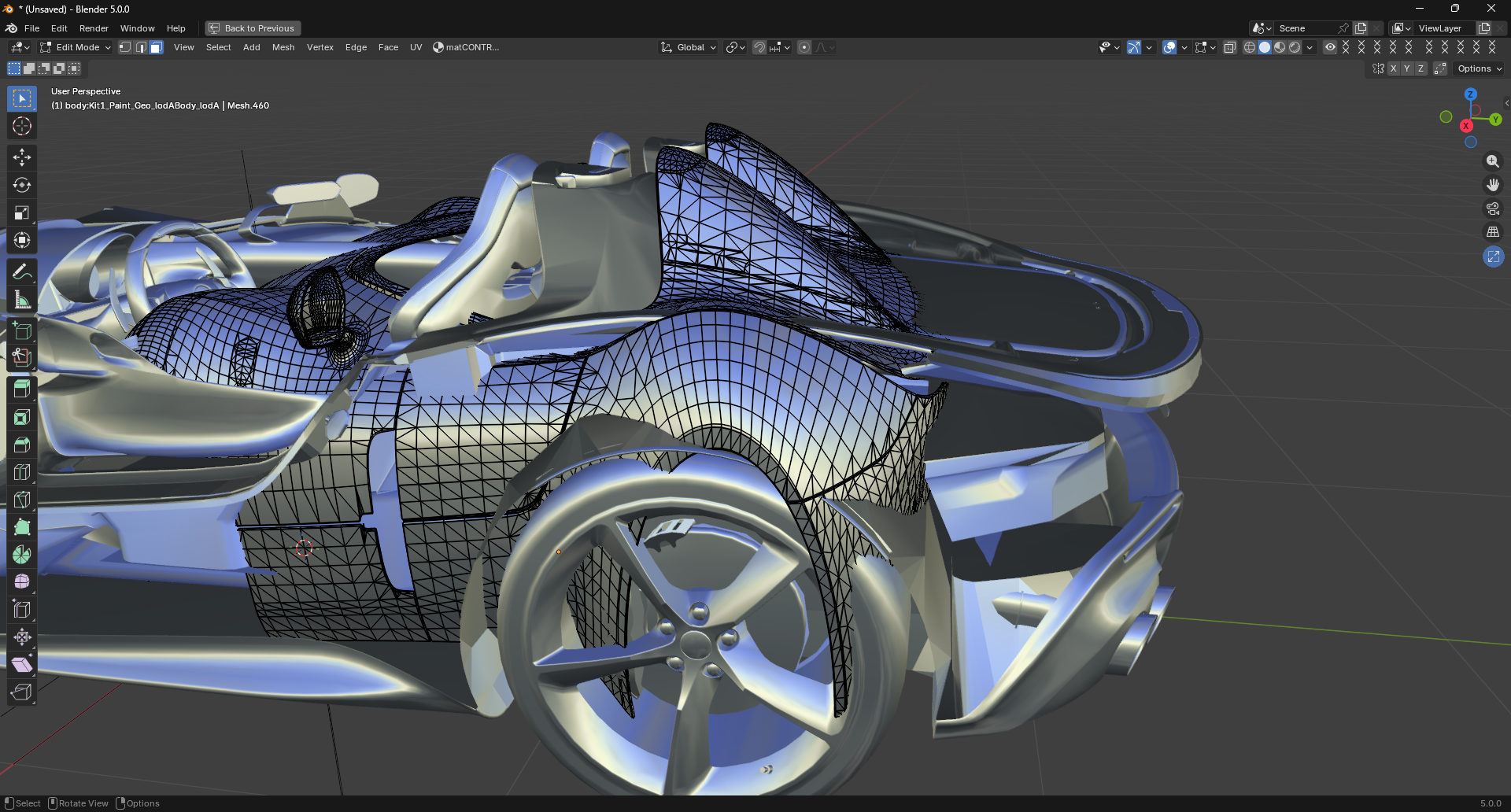
The original parenting of the edited object is saved and fully restored when you reset.
Resetting
A reset restores every original transform and parent relationship exactly, then deletes the hidden Empty. You can reset in any of these ways:
Click the viewport button without dragging.
Click (without dragging) during a
Ctrl+Alt+LMBgesture.Press
Ctrl+Alt+RMBin Object Mode.
If several stretch rigs are active at once (for example an Object-Mode stretch plus an Edit-Mode stretch), a single reset dismantles them all in the correct order.