Preferences
ViewStretch exposes all of its options in the addon preferences. Open them via Edit > Preferences > Add-ons > ViewStretch.
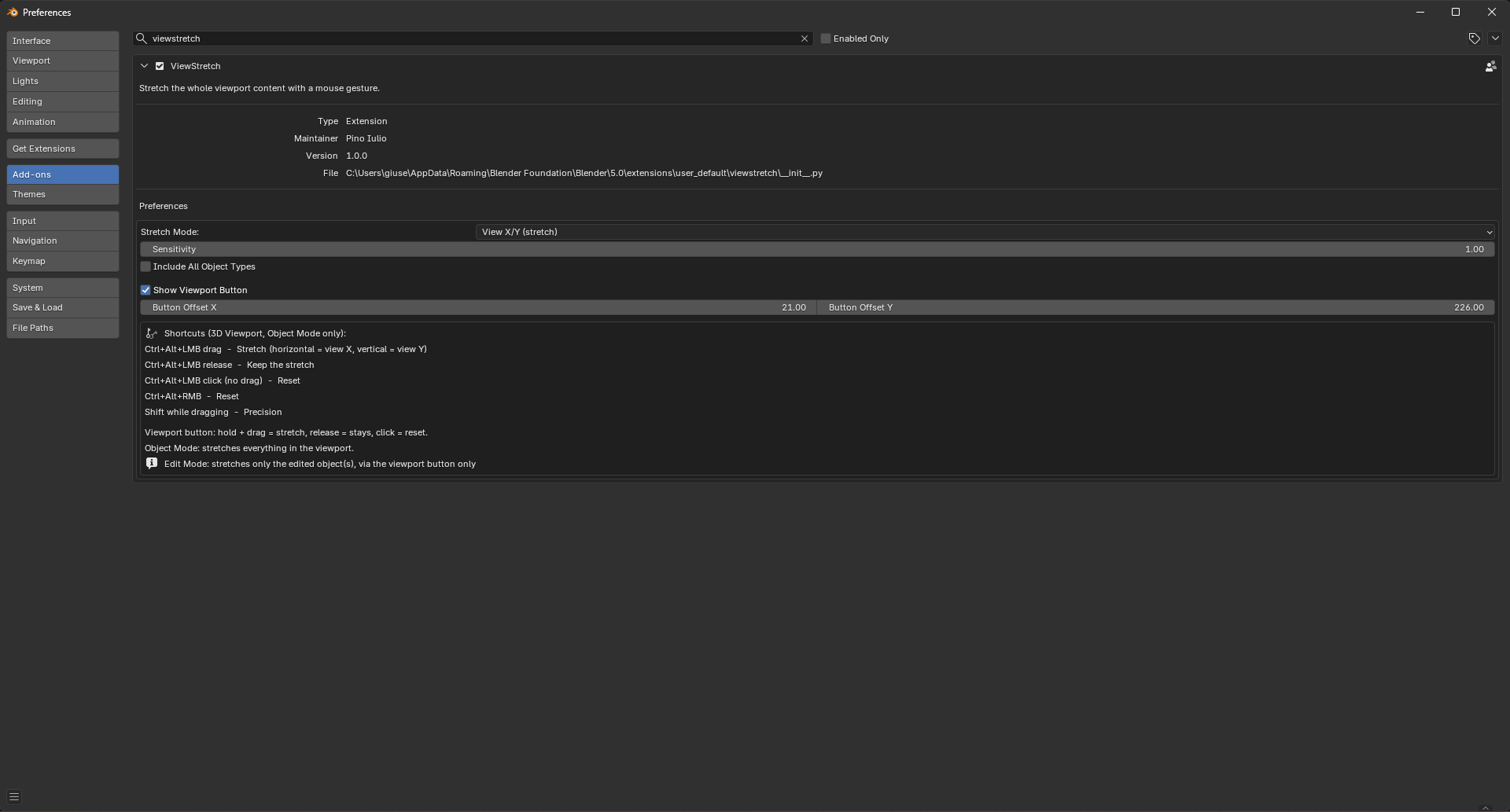
Stretch Mode
Controls how the hidden Empty is scaled while dragging.
View X/Y (stretch) (default) — horizontal drag scales along view X, vertical drag scales along view Y. This is the non-proportional behavior that mirrors Alias.
Uniform — scales uniformly on all axes at once.
Sensitivity
Mouse drag sensitivity for the scale factor. Higher values make the model stretch faster for the same mouse movement. Range 0.01–10.0, default 1.0. Hold Shift while dragging for a temporary 10× finer (precision) response regardless of this setting.
Include All Object Types
Off by default. When off, Object-Mode stretches affect only geometry-like objects (meshes, curves, surfaces, metaballs, text, grease pencil, point clouds, volumes, lattices). Turn it on to also parent and stretch cameras, lights, speakers, and other non-geometry objects. This option applies to Object Mode only.
Shortcut reference
The bottom of the preferences panel lists the shortcuts for quick reference:
Ctrl + Alt + LMBdrag — Stretch (horizontal = view X, vertical = view Y)Ctrl + Alt + LMBrelease — Keep the stretchCtrl + Alt + LMBclick (no drag) — ResetCtrl + Alt + RMB— ResetShiftwhile dragging — Precision
It also reminds you that the viewport button does hold + drag = stretch, release = stays, click = reset; that Object Mode stretches everything in the viewport; and that Edit Mode stretches only the edited object(s), via the viewport button only.